IDENTIFYING STUDENT PLACEMENT ERRORS
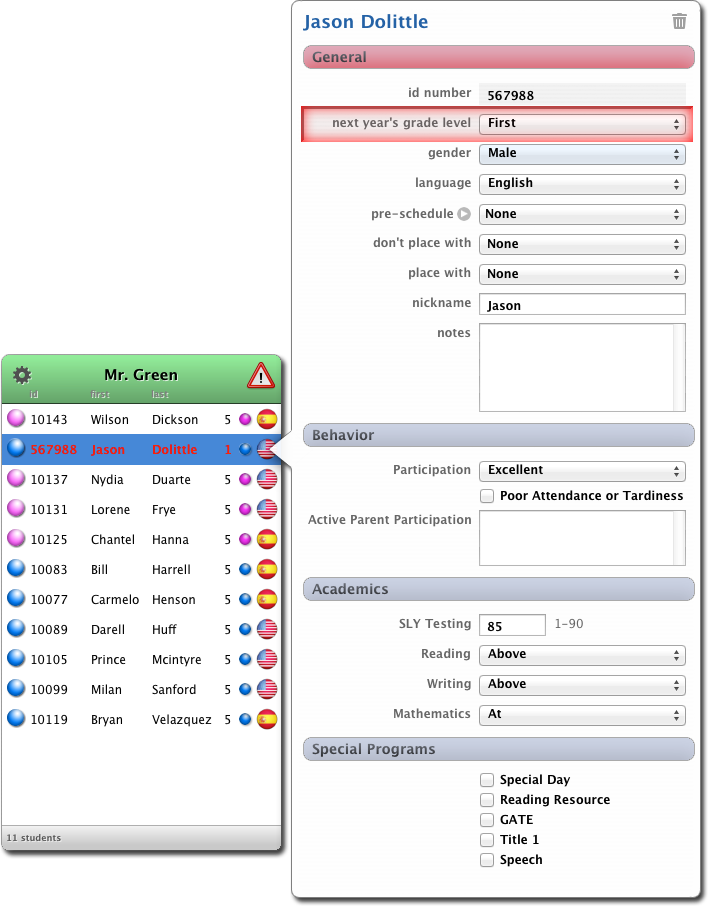
When there is a student placement error, the student will be listed in red, and the  Teacher Warning icon will be shown next to the teacher's name. Click the Teacher Warning icon to view a list of students that are misplaced as well as any other errors.
VIEWING STUDENT PLACEMENT ERRORS
To see the specific issue that is causing the student placement error, double-click the student's name and the placement card will display. Any items that are mismatched will be highlighted in red.
For example, in the screen shot above, the teacher is set to accept only 5th grade students. Since the student is set to 1st grade, there is a placement error and the student's grade level is outlined in red.
You can also drag students to and from the Unplaced Students List.
WHAT TO DO WITH A STUDENT PLACEMENT ERROR
When there is a placement error, you have several choices:
It's OK to have a placement error. You can override the error by simply ignoring it. The main point of the error is to bring it to your attention. You can choose to address it, or ignore it.