- support@clearvisiontech.com
- (909) 484-2052


Your Gradebook allows you to set preferences for operating your Gradebook. To access the Gradebook Preferences, choose Preferences from the Edit menu. On a Macintosh computer, choose Preferences from the RCM menu.
You can also access the Gradebook Preferences by clicking the  Preferences icon at the bottom of the screen.
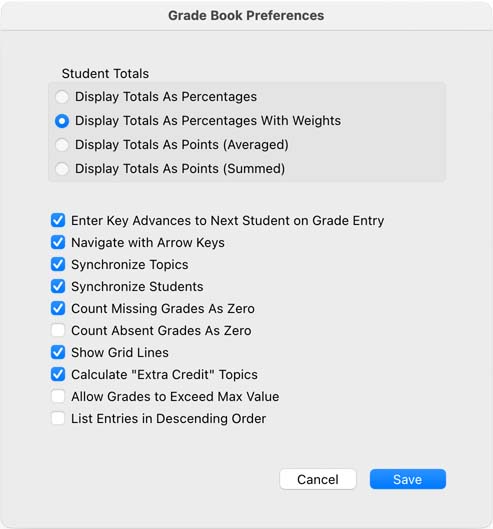
Display Totals As Percentages With Weights - If this option is selected, student totals in the Average Column will be displayed as percentages with weights. This is the selection almost all teachers use.
Display Totals As Points (Averaged) - If this option is selected, student totals in the Average Column will be displayed as an average total of points. (For this option to be used, all entries must be set to "Points")
Display Totals As Points (Summed) - If this option is selected, student totals in the Average Column will be displayed as the total number of points. (For this option to be used, all entries must be set to "Points")
Enter Key Advances to Next Student on Grade Entry - Check this option to have the Gradebook advance to the next student when the Enter key is typed when entering grades.
Navigate with Arrow Keys - Checking this option will cause arrow keys to navigate throughout the grade grid. If this option if off, typing an arrow key will navigate through the text (if applicable).
Synchronize Students - Checking this option will cause the Gradebook to automatically select the active student in RCM's Main Screen, and visa versa. This will keep the same student selected in the Report Card and in the Gradebook.
Count Missing Grades as Zero - When the Gradebook calculates a student’s average score, this option, if checked, uses zero ("0") as the grade for any grades that are missing. If this option is unchecked, the Gradebook will not consider missing grades at all. For example, if a student has a total of 10 grades that are being calculated, and one of them is empty, if this option is unchecked, the Gradebook will only consider the nine entered grades.
Count Absent Grades as Zero - Similar to the Count Missing Grades as Zero option, this option, when checked, will cause student grades that are Absent to be counted as a zero. If not checked, Absent grades are not counted against the student.
Show Grid Lines - Check this option to have the gradebook display horizontal lines in the grade grid. This preferences also applies when printing the grade grid.
Calculate "Extra Credit" topics - If this option is enabled, any entries that are assigned to a topic with the phrase "Extra Credit" in it's title will be calculated separately from all other topics and therefore be counted as, "Extra Credit". If a student does not have a grade under this condition, it will not be counted against him.
Allow Grades to Exceed Max Value - If this option is checked, you can enter a number greater than the entry's max value. For example, if you have a entry that is set to points, and the Max Points is set to 20, if this option is checked, you could enter 22. This could be useful if you want to enter extra credit.
List Entries In Descending Order - Check this option to have your entriess listed with the most recent one first.