- support@clearvisiontech.com
- (909) 484-2052


 Editing Student Data
To edit a specific student’s information, select the school and then the teacher and finally click the desired student's name in the Student List.
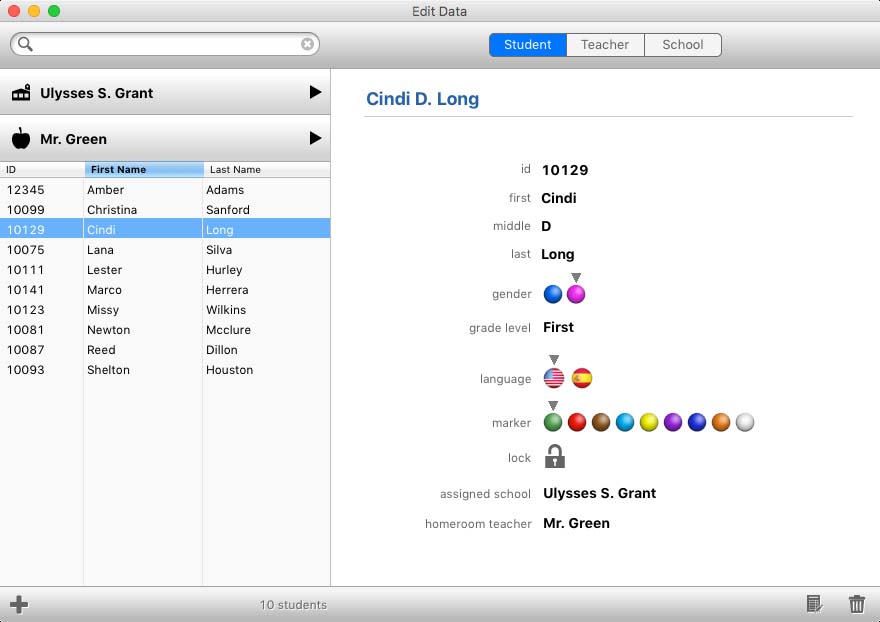
ID - This is the student's ID Number. This number must be district-wide unique.
First Name - Use this field to enter the student’s first name.
Middle Initial - Use this field to enter the student’s middle initial.
Last Name - Use this field to enter the student’s last name.
Gender - Click the blue circle if the student is a boy, and the pink circle if the student is a girl, or the third option for a non binary student.
Grade Level - Select the student's grade level.
Language - This is the default language you want the stuednt's report card to be when sent home to the parent. An English copy can always be accessed or printed.
Marker - This item is typically not defined by the district. However, if you need to set the color marker of a student for some reason, you can. To set the marker, simply click the desired color.
Lock - Check the Locked checkbox to denote that this student is locked. A locked student cannot be edited by the teacher.
Assigned School and Homeroom Teacher - Use the Assigned School popup menu to move the selected student to another school. After choosing a school, select the teacher from the Homeroom Teacher menu that you want to place the selected student. Moving a student to another school/teacher will automatically move any existing report cards and forms that previous teachers have completed.
ADDING A NEW STUDENT
To create a new student, click the Student tab and then click the  New Student button at the bottom-left of the screen. A new student will be created in the student list of the selected teacher. Edit the student's information as desired.
DELETING A STUDENT
To delete a student, click the  Delete Student button at the bottom-right corner of the screen. Once the student is deleted, it cannot be recovered.
VIEW A STUDENT REPORT CARD
You can view the report cards that the selected teacher has completed by clicking the  View Student Report Card button at the bottom-right of the screen. This will open the Report Window where you can view and edit the report card.