- support@clearvisiontech.com
- (909) 484-2052


 Data to Export
In the Export Data window, click the Data to Export button at the top of the window to define what data you want exported.
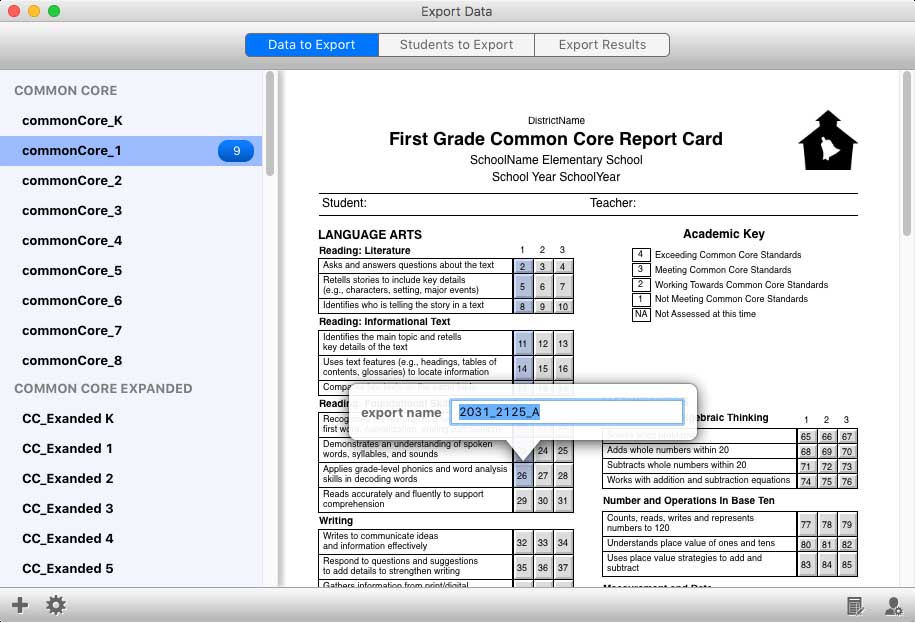
On the left side of the screen is a list of all the available report cards for your district or school. You can export data from as many report cards as you like.
Select a report card from the list and the selected card will appear on the right.
SELECT THE FIELDS TO EXPORT
Simply click the fields you want to export. Fields tagged to be exported will appear blue.
When you click a field, or roll your mouse over a selected field, you can enter a name for this field. The name you give the field will become the column name in your final export.
You can select all the fields for a single term or select all fields by clicking the  Field Selection button at the bottom-right of the screen.
ADDITIONAL EXPORT DATA
You can choose to include additional information with each student in your export. These additional items are:
To select any of these additional fields, click the  Additional Export Items button at the bottom-right of the screen. Checked items will be included in your export.
SAVING AND LOADING PRESET SETTINGS
Once your settings are as desired, you can save them so if you should need them again, you don't have to select them all again. To save the current settings, click the  Save Preset button at the bottom-left corner of the screen. Enter a name for your preset you'll recognize later.
To load a saved preset, click the  Load/Delete Preset button. Choose the desired preset. You can also remove a preset from your saved presets from this menu.