- support@clearvisiontech.com
- (909) 484-2052


 Printing Report Cards
You can print your student reports one at a time, or all at once.
DISPLAYING STUDENTS
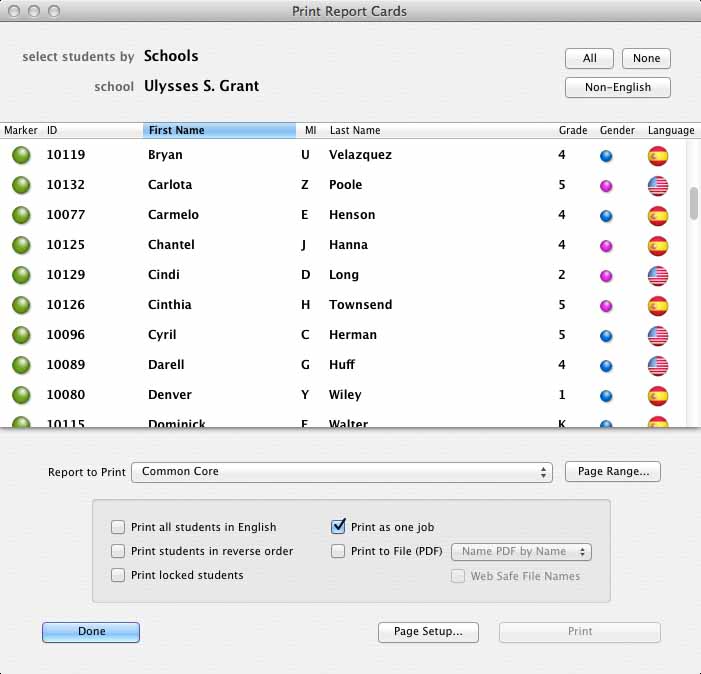
Students who are selected in the student list will be printed. Students who are not selected will not be printed.
You can choose to list all students, or list students by Teachers, Schools or Grade Level. Choose the desired method from the Select Students By popup menu. If you choose Teachers, Schools or Grade Level, a second popup menu will appear, select the desired Teachers, School or Grade Level from this menu.
Your can also choose Print Blank Report Cards to print your report cards without student names, teacher names, school names or grades.
SELECTING STUDENTS
To select a student, click their name in the student list. You can use the All and None buttons to select all or none of your students. To select all of the students whose language is not English, click the Non-English button.
PRINTING OPTIONS
In the Print Reports window, you can choose the report you would like to print. Make this selection from the Report to Print popup menu. You can also choose a range of pages to print by clicking the Page Range button.
You can choose to print the report cards for your second language students in English. This allows you to keep an English copy of the report for your files. To print second language students in English, click the Print all students in English check box.
Check the Print students in reverse order check box if you want to print the selected students in reverse order. This is helpful when printing report cards back-to-back on a non-duplex printer.
If the Print as one job check box is checked, your reports will be sent to your printer as a single print job. If it is unchecked, each report card will be sent to the printer as individual print jobs. This is useful if you are sharing a site printer and want all your reports to be printed together.
Check the Print locked students check box if you want locked students to be printed. If unchecked, students who are locked will not be printed.
Check the Print to File check box to print your report cards to a PDF file. When this option is checked, you can choose to have the output files named by student names, or by ID numbers. You can also check the Web Safe File Names checkbox to have your file names web-safe. For example, rcm_report_cards.pdf.
Click Page Setup to define your printer and other page options.
When your ready to print, click Print.