- support@clearvisiontech.com
- (909) 484-2052


 Filtered Statistics
SIMON allows you to make lists of students who meet specific requirements. For example, you could generate a list of all students who are in third grade, who are in Special Education, and got an A+ in Reading.
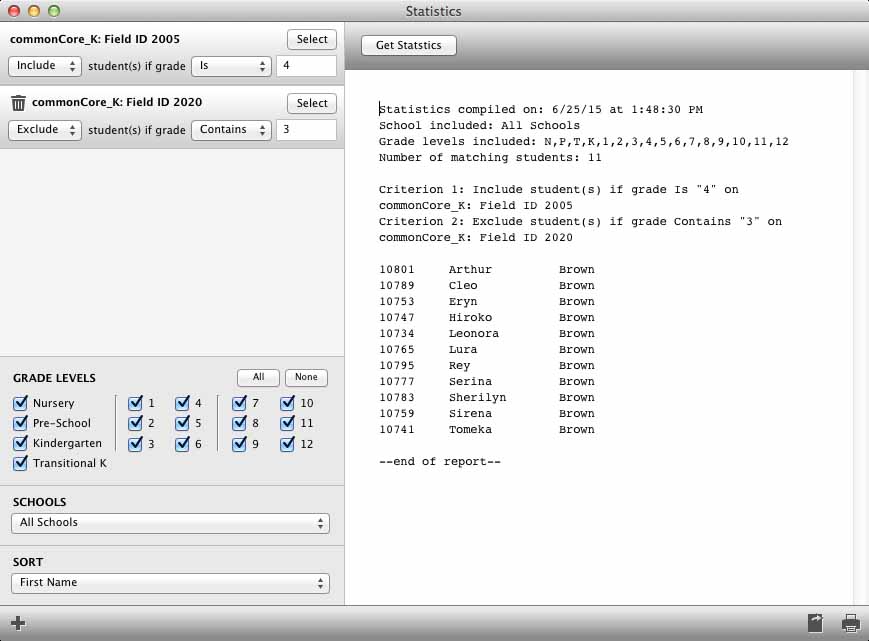
The Filter Statistics window lets you define the criteria for the statistics you want. You can select up to eight (8) different filters to list students. Criterions are nested. So, if you set more than one criterion, the second criterion will only consider students who have not been excluded from the first criterion - and so on.
CRITERION SETTINGS
First, click the Select button to display the report card and click the field you want.
Next, select to Include or Exclude a matching student. If you choose Include, then the student will be included in the results if the student meets the criteria. If you choose Exclude, then the student will be excluded from the results if the student meets the criteria.
Next, select if the target grade (mark) Contains or Is. Choose Contains if you are going to supply only part of a grade. For example, if you want a list of all students that got a "A+", "A" or "A-" then, choose contains and type "A" in the grade field. However, if you want a list of students that got an "A+", choose is and type "A+" in the grade field.
Type the target grade (mark) in the Grade field.
Note: to specify a check mark, you can enter the word "check".
ADDING ADDITIONAL CRITERIONS
To add additional criterions, click the  Add Criterion button. To remove a criterion, click the
  Remove Criterion button.
GRADE LEVELS
You can include/exclude grade levels from your statistics by checking the desired grade levels. Only grade levels that are checked will be included in your statistics.
SCHOOLS
You can also select if you want students included from all schools, or a single school. To select a single school, click the Selected Schools radio button. Then, choose the desired school from the popup menu.
SORT
Use the Sort popup menu to choose how you want the results sorted.
THE FINAL OUTPUT
The output of your statistics will be a list of students that match your criteria. Click the Get Statistics button to generate the list.
To save the statistic data, click the  Save As button. You can also print the results by clicking the
  Print button.