- support@clearvisiontech.com
- (909) 484-2052


 ClassMaker
Welcome to ClassMaker!
ClassMaker is an easy, organized way to create next year's classrooms. No more pink and blue placement cards with teacher scribbles all over a room.
ClassMaker works in conjunction with Report Card Maker. There are no additional programs, plug-ins or extensions to install. Access ClassMaker right in Report Card Maker.
ClassMaker uses your existing students and teachers from RCM, which means you don't have to enter student or teacher names and information.
ClassMaker allows you to:
ClassMaker does much more than is described in these pages. For further details on ClassMaker, or to obtain the demo version of ClassMaker, please contact ClearVision Technologies.
Edit Placement Cards
ClassMaker allows you to edit the placement card for your district or school. For complete details on editing the ClassMaker placement cards, see Customizing the Placement Card in the ClassMaker User Guide.
ClassMaker Users
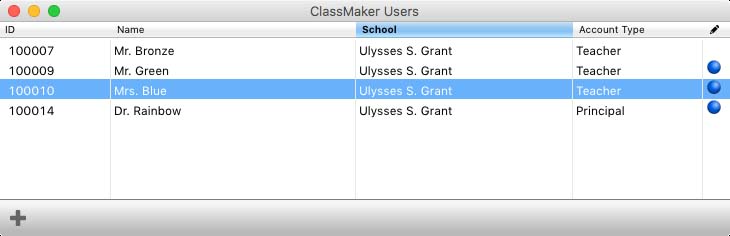
To add a new user, click the  New ClassMaker User button then select the desired user by first selecting the school, then the user's name.
The far right column of the ClassMaker Users window denotes if the selected user can edit the placement card in ClassMaker. To set the user so they can edit the placement card, click in the far right column to add a blue dot. Click the blue dot to remove the ability to edit the Placement Card.
To remove a user, select the user's name in the list and strike the delete key on your keyboard.
Clear Student Placement Cards
You can clear/reset portions of each student's placement card. The areas you can clear are:
Select the areas you want to clear, and click "Clear Student Placement Cards".