- support@clearvisiontech.com
- (909) 484-2052


 My Parent Portal
The My Parent Portal feature of Report Card Maker allows parents to login and download a PDF copy of their student(s) report cards. If you are using the RCM Gradebook, parents can view daily grades as well. The website parents will visit is https://myparentportal.com/.
PARENT LOGIN ACCOUNTS
Each parent is issued an account. The parent logs into the My Parent Portal website with their eMail address and the password. Once logged in, they will see all of their students in one place. A separate login is not needed for parents that have multiple children in the school.
MULTIPLE ACCOUNTS
Each student can have multiple logins. This is great if parents are divorced or if additional users are needed.
PUBLISH REPORT CARDS
When you are ready to release your report cards to the parents, the teacher can publish them in RCM, or the district or school site can publish all report cards at the same time. Notification eMails can be sent to all parents that their child's report card is ready to be viewed.
Each student will need a login. The login is given to the parent so they can access the My Parent Portal feature for their child.
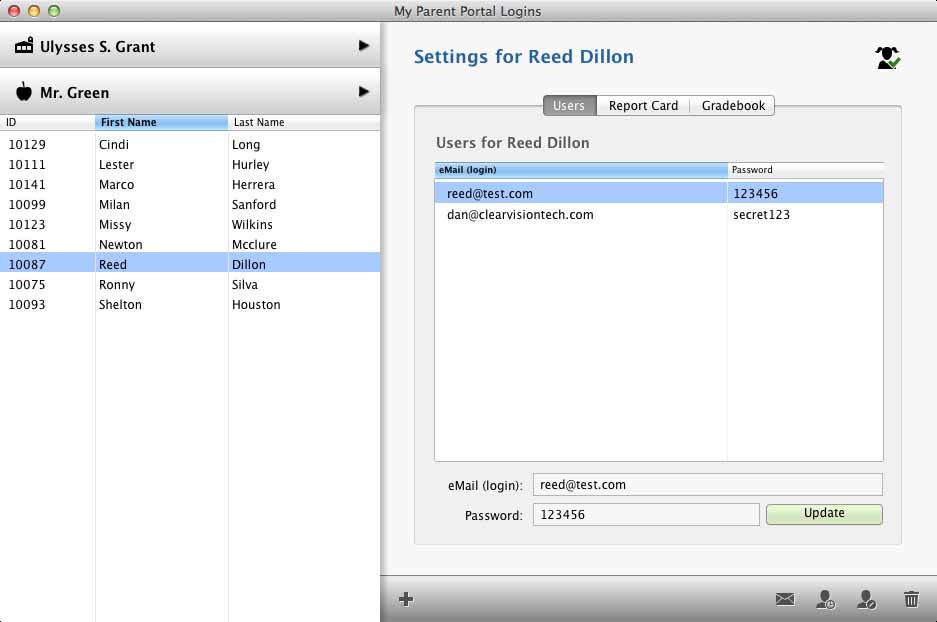
Then, click the  New User button. A new user will be listed in the user list. Enter the eMail address for this parent in the eMail (login) field. Enter a password for the parent, or leave it blank to allow the password to be entered by the parent.
Click Update to update and save the new user.
If you enter an eMail address that is already in the system, the existing parent will be used and the current password (if there is one) will be displayed.
DISCONNECTING A PARENT
Your can disconnect a parent from a student. This does not delete the parent's account. But it will no longer be connected to the selected student. To disconnect a parent from a student, select the desired student and parent. Then click the  Disconnect User button.
DELETING A PARENT
Your can delete a parent from the My Parent Portal system. This will delete the parent's account and disconnect all students from the selected user. To delete a parent, select the desired student and parent. Then click the  Delete User button.
VIEWING PARENT HISTORY
You can view a list of when each parent has logged into My Parent Portal. This can be very helpful when determining who your active parents are. To view a parent's login history, select the desired student and parent. Then click the  Parent History button.
DISABLE STUDENT ACCOUNT
If the need should ever arise, you have the ability to disable any user from logging in and viewing a student's data in My Parent Portal. For example, if you are a private school and a student's tuition is not paid, you can easily disable the student so parents cannot login.
At the top-right of the window, there is an icon of a student. Click this icon to disable the student. Click it again to enable it.
 Student is Enabled and accessible.
 Student is Disabled and inaccessible.
EMAIL PARENT LOGIN INFORMATION
When you are ready to notify your parents that the report cards are available, you can send them an eMail with a link to the My Parent Portal website and, optionally, their username and password.
Simply click the  eMail Parent button. You can choose to eMail the selected parent, all parents of this teacher, school or all parents in the district. Once you make your selection, you can preview the eMail and send it.
This option will export a list of all My Parent Portal logins. Included in the exported file for each parent will be:
You can import parent logins from a file. This will make it easy to import parents in bulk into the system.
IMPORT FILE SPECIFICATION
The format of the file is very simple. The file should contain just two columns (with no column header):
If you have students who need multiple logins, simply enter two (or more) rows for the student.
Your import file must be plain text. If you are working in Excel, choose "Save As" from the file menu and select "Text (Tab Delimited)" as the file type.
IMPORTING THE FILE
To import the file, choose Utilities > My Parent Portal > Import > Parent Logins. Then, select your import file.
Depending on the amount of data being imported, the process could take from a few seconds to over an hour.
Use this option to delete (remove) all My Parent Portal logins. This option is good when you are starting the new school year and you want to wipe out all the old logins and import new ones.
When you are ready for the parents to see the report cards you have selected, click the Publish Reports... button.
If teachers make any change to the report cards (change a grade, edit a comment, etc.), you will need to republish the report card for the parent to see the edits.
PUBLISHING YOUR REPORT CARDS
To Publish the cards, choose Utilities My Parent Portal Publish Report Cards, or click Publish Report button in the Users tab in the Edit Parent Logins window.
When the Publish Report Cards window opens, select the students you want to publish and click Publish Report Cards.
For each student, define which terms and subjects the parent can view.
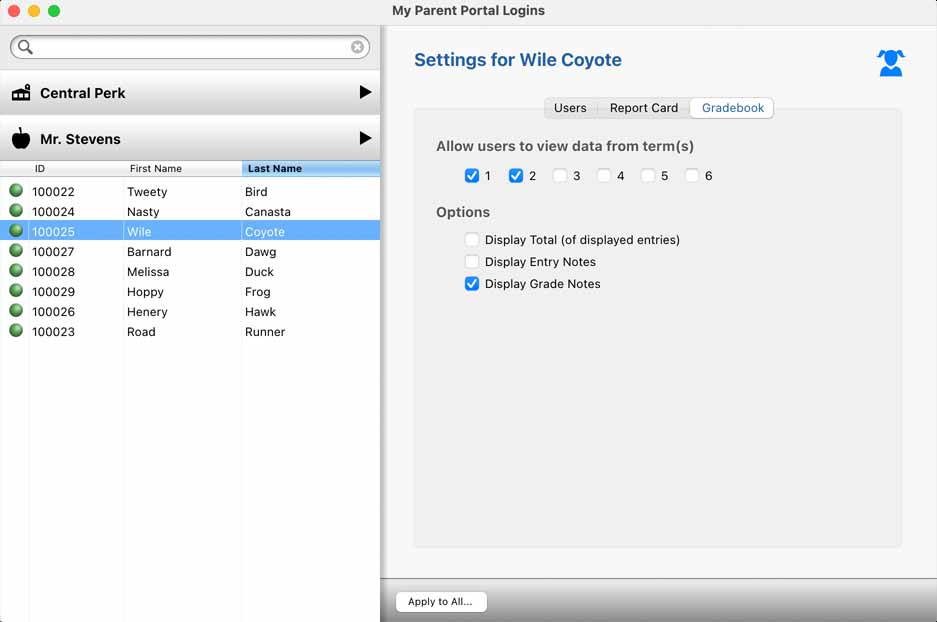
ALLOW USERS TO VIEW DATA FROM TERM(S)
Check the terms that you want the parent to see. If the teacher has entries in her gradebook that are set to term 1, and the term 1 checkbox is not checked, the parent will not see these entries.
OPTIONS
Display Total (of displayed entries) - If checked, the parent will see a total percentage of grades for each subject.
Display Entry Notes - If checked, the parent will have access to read any notes/descriptions the teacher have entered for each entry.
Display Grade Notes - If checked, the parent will have access to read any notes the teacher has entered for any specific grade in the gradebook.
For each student, you'll need to define which report card(s) the parent can view. Note that you may only have one report listed.

You will see a list of all the available reports for your district or school. Check the reports you want the parent to see.
APPLY SETTINGS TO ALL STUDENTS
If all your students have the same report card settings, then you can click the Apply to All... button. This will apply the current report card settings to all your students.
You can view the last time the report cards were published for your students.
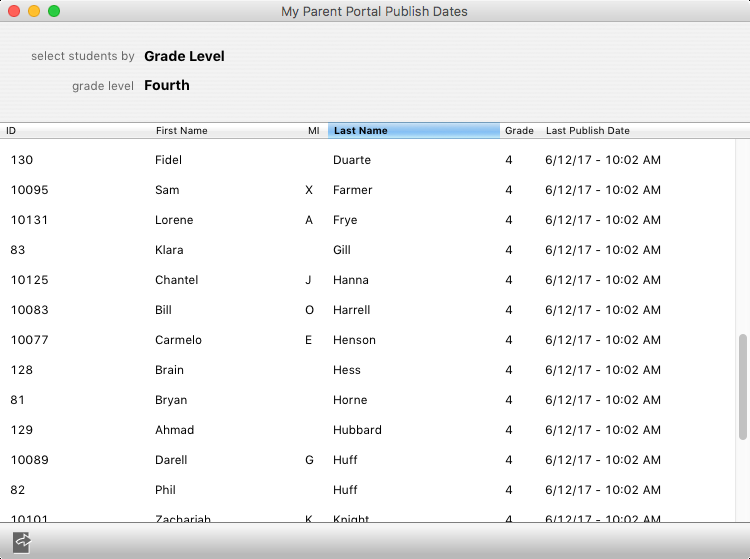
You can copy the data to the clipboard or save it to a text file by clicking the  Export Student List button.