- support@clearvisiontech.com
- (909) 484-2052


 Report Card Maker
Some report cards contain images controlled by the school or district. These images could be logos, signatures or any other type of image that could change based on the school, principal or teacher.
To set the location of these images, choose this option and enter the remote path to the images. For example: http://www.ourgreatschool.org/reportcard/images/
When a Principal enters comments on a student's report card, it is placed under the homeroom teacher's comment in italic with the title "Principal's Comment".
This option allows you to set a different string other than "Principal's Comment". For example, if you are a private school, you may want "Head of School's Comment", or "Rabbi Chutzpah Comment".
You can set a Skeleton Key that will allow you to get into any teacher's account in RCM. Use this option to change the Skeleton Key.
If you need the ability to block teachers from working in RCM, you can do this with the System Status option.
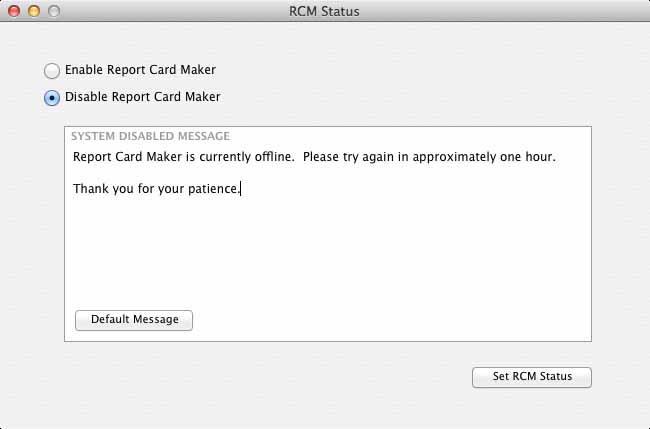
Click the Disable Report Card Maker radio button. Then, enter a message for the teachers in the System Disabled Message field. The message you enter will be presented to the teacher when she attempts to login. The Default Message is:
After you enter your desired message, click the Set RCM Status button. Teachers will now be blocked.
UNBLOCKING RCM
To unblock RCM, click the Enable Report Card Maker button and then click the Set RCM Status button. Teachers will now be able to login to RCM.
This option allows you to select a report card and click on any field on that card to reveal the ID numbers associated with that field. This is extremely useful when you need to get the report ID, field ID and language codes for a field when importing custom data onto the report cards.
When you click on a field, you'll see the field's:
You will also see the "Import Name". This would be the exact column name you'll need to import data into this field.