- support@clearvisiontech.com
- (909) 484-2052


 Team Teachers
Team Teaching is a valuable tool for a teacher to share student report cards with other teachers. Team Teaching is the process of sharing data between two or more teachers. For example, Jimmy is assigned to Ms. Jones' class (this is the Homeroom Teacher). Every Tuesday, Ms. Smith teaches Science to Jimmy. You (or Ms. Jones in RCM) can allow Ms. Smith to edit only the Science grade on Jimmy's report card. This is done by defining Ms. Smith as a Team Teacher to Ms. Jones.
You can define the Team Teachers in SIMON, or you can let the teachers do it on their own in RCM. All of the Team Teaching settings can be set by the teacher in RCM - without any input or management from you.
In either case, you'll need to enable Team Teaching for the teachers to use this feature in RCM. See Manage Teacher Teachers.
ENABLING TEAM TEACHING
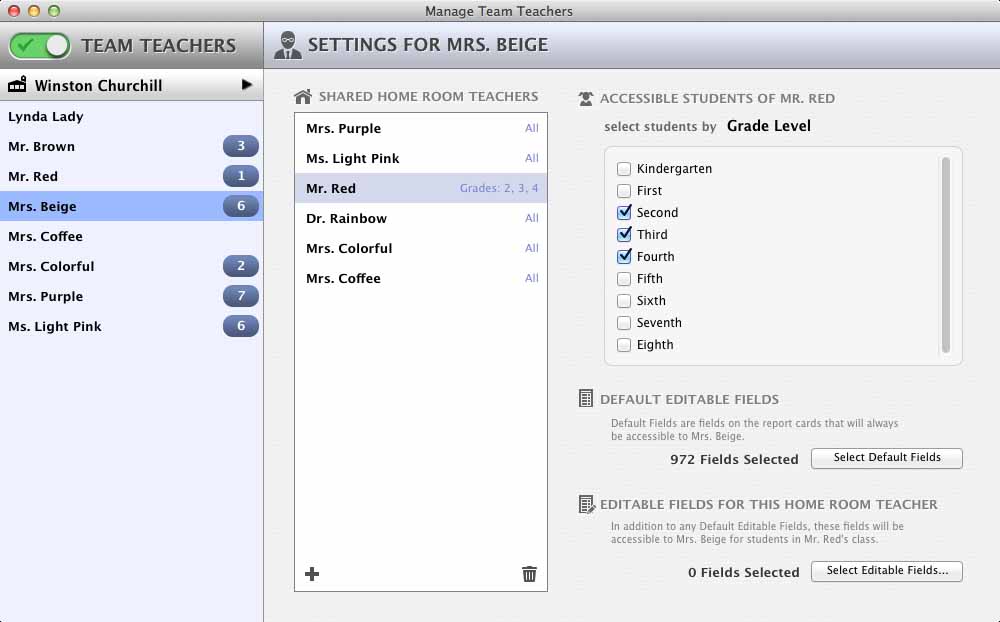
At the top-left of the window is the master Team Teacher switch. Click this switch to enable Team Teaching. If the switch is green, team teaching is on. If it's red, team teaching is off.
TEAM TEACHERS LIST
On the left of the screen is the Team Teacher List. Select a school then click the name of the teacher you want to edit. Next to each teacher's name is the number of homeroom teachers that are connected to that team teacher.
TEAM TEACHER SETTINGS
To the right of the Team Teacher List is the Shared Home Room Teachers list. To add a new Home Room Teacher connection to the selected Team Teacher, click the  Add Teacher button at the bottom of the Shared Home Room Teacher list. Select the desired school and teacher. Once added, the selected teacher will be added to the Home Room Teacher list.
Use the Select Students By to define which students this team teacher can access. You can select All Students, Grade Level (only students in grade levels you select), Gender (boys or girls), or Name (any combination of students from the home room teacher's class list).
ABOUT EDITABLE FIELDSThere are two types of Editable Fields you can set, Default Editable Fields, and Editable Fields For This Home Room Teacher.
Default Editable Fields can only be set in SIMON (the teacher can't set this in RCM). These are field that this team teacher will always be able to edit, regardless of the home room teacher's settings. This is very useful if you are setting up a PE teacher who is connected to every teacher in the school.
Editable Fields For This Home Room Teacher are fields that only apply to this Team Teacher when editing students from this Home Room Teacher.
DEFINING EDITABLE FIELDS
To define the fields the Team Teacher may edit, click the Select Editable Fields button for the appropriate section (Default or not), and the Editable Fields view will open.
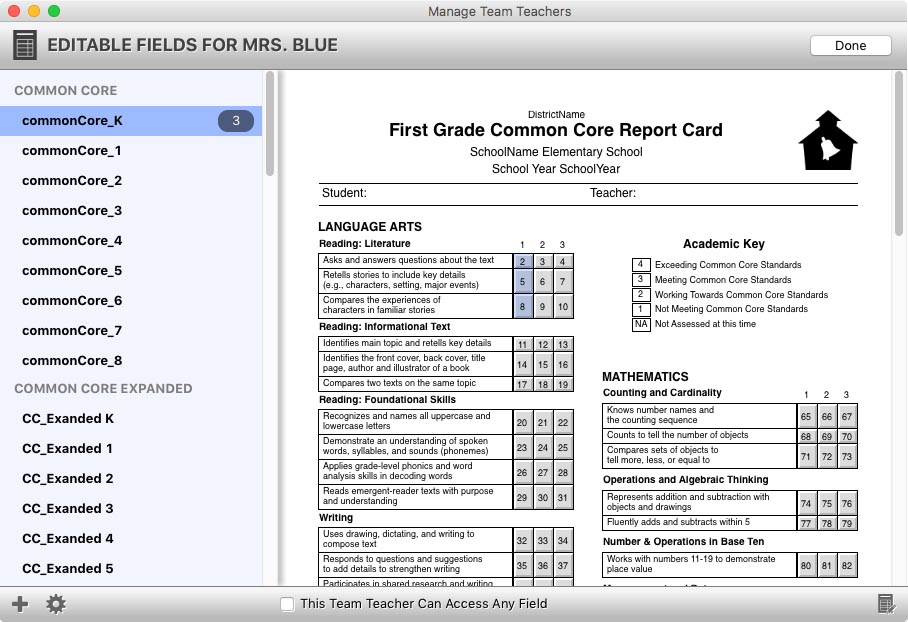
Select as many fields as you need. You can even selected fields from multiple reports/forms.
You can save the selected fields as a set of fields so you can load them again for another teacher. To save the selected fields as a preset, click the Save as Preset button and give the preset a name. To apply a preset, click the  Select Preset button and select the desired preset.
To delete a preset, click the Select Preset button and choose Delete > [preset name].
At the bottom of the window is the This Team Teacher Can Access Any Field check box. Check this option if you want the selected team teacher to have access to all fields on all report cards for all grade levels.
When the desired fields are selected, click the Done button.
REMOVING A HOME ROOM TEACHER
To remove a Home Room Teacher, select the team teacher's name in the Home Room Teacher list and click the  Delete Teacher button.
This option will disconnect all Shared Home Room Teachers with their Team Teachers. All Team Teacher data will be removed leaving no team teacher connections.
Use this option to reset all Team Teacher Connections at the beginning of a new school year.
SIMON allows you to import Team Teachers. The process is simple: prepare your import file, and them import it.
THE IMPORT FILE
The specifications for the file are simple. There are just four columns:
Once your import file is ready, import it into SIMON by choosing Import Team Teachers from the Team Teachers option in the Utilities menu.