- support@clearvisiontech.com
- (909) 484-2052


 Editing Teacher Data
To edit a specific teacher’s information, select the teacher from the Teacher List popup menu. Then click the Teacher/User tab.
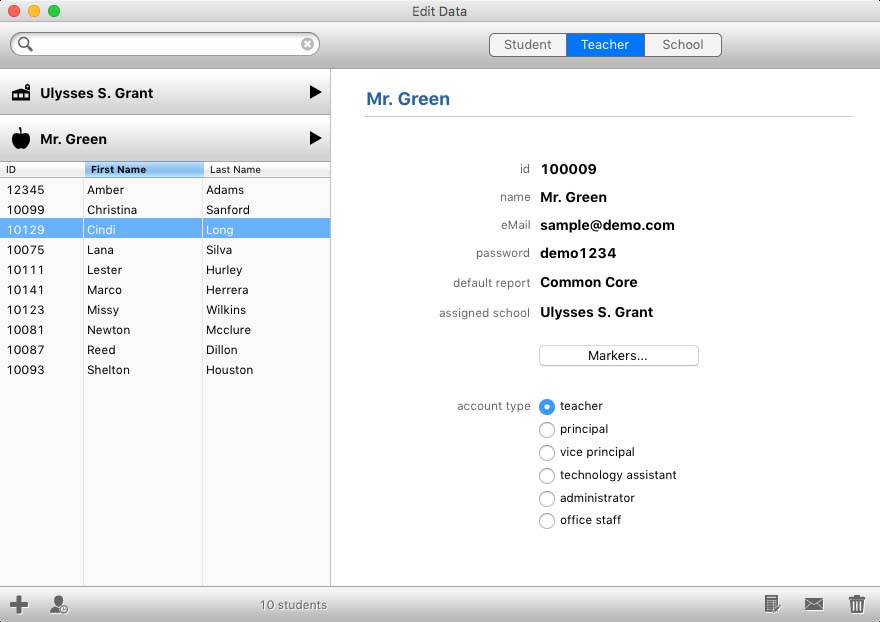
ID - This is the teacher's ID Number. This number must be district-wide unique.
Name - Use this field to enter the teacher’s name. Note that the teacher can edit this text in RCM.
eMail - This field contains the teacher's eMail Address. The teacher will use her eMail address as her login.
Password - The teacher's password.
Default Report - This is the report that will appear first when the teacher logs in. If your district or school has only one report, this option won't matter to you. Note that the teacher can change this preference in RCM.
Assigned School - Use the Assigned School popup menu to move the selected teacher to another school. Moving the teacher to another school will also move any students that are assigned to the selected teacher to the chosen school. You may want to move any students to another teacher if you don’t want to also move the students.
Markers - Click this button to open the Define Markers window where you can define the color-coded markers used by this teacher. Note that the teacher can edit the marker settings in RCM.
Account Type - The account type radio buttons determine what type of account this user has. This setting also determines how RCM will handle this user.
Teacher - A classroom teacher.
Principal - A user who is a principal at a school. RCM will automatically enter Principal's Mode when this user logs in.
Vice Principal - A user who is a vice principal at a school. RCM will automatically enter Principal's Mode when this user logs in.
Technology Assistant - A user at a school site who needs access to all teacher's data at that specific school. Technology Assistants do not have access to SIMON.
Administrator - A user with full administrator rights. They will have access to SIMON (you cannot access RCM from an administrator's account).
Office Staff - A user with read-only permissions to view data. They can also print any report card from their school.
ADDING A NEW TEACHER
To create a new teacher, click the Teacher/User tab and then click the  New Teacher button at the bottom-left of the screen. A new teacher will be created in the selected school. Edit the teacher's information as desired.
REINSTATING A TEACHER
If a teacher was in RCM in a prior year, and that teacher is not listed in RCM for the active school year, you can Reinstate the teacher and make his/her account active for the current school year. To reinstate a teacher, click the  Reinstate Teacher button at the bottom-right corner of the screen. Enter the teacher's ID Number or eMail address. The teacher will be given the same account type as they had previously, and if applicable, placed in the same school as previous.
DELETING A TEACHER
To delete a teacher, click the  Delete Teacher button at the bottom-right corner of the screen. You cannot delete a teacher if there are student assigned to the selected teacher. You will first have to move the students to a different teacher.
VIEW TEACHER REPORT CARDS
You can view the report cards that the selected teacher has completed by clicking the  View Student Report Cards button at the bottom-right of the screen. This will open the Report Window where you can view and edit report cards.