- support@clearvisiontech.com
- (909) 484-2052


You can import (carry over) students and/or teachers from last year's data set into this year. This is an easy way to get your students and teachers into the current year – if not too much has changed from last year.
To import data from last year, click the Import Data button and choose Import Data From Last Year.
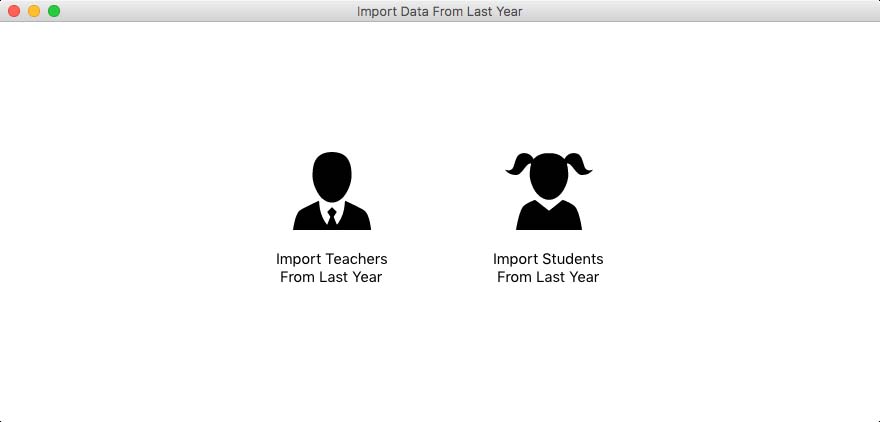
Import Teachers From Last Year
To carry over teachers from last year, click teacher icon. The Import Teachers From Last Year window will open.
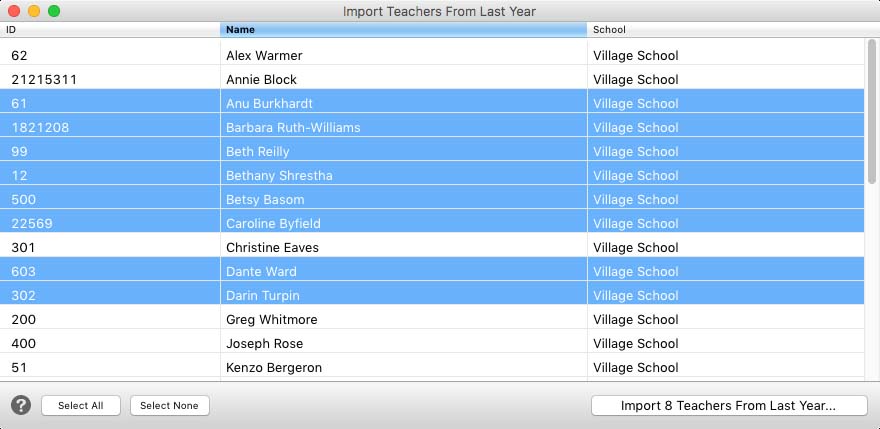
Select the teachers you want to carry over to the current school year by clicking on their names. You can use the Select All and Select None buttons to aid in your selection.
When the teachers are selected as desired, click the Import X Teachers From Last Year button. After confirming the action, the import will begin. It won't take very long.
When you are done importing your teachers, close the Import Teachers From Last Year window.
Import Students From Last Year
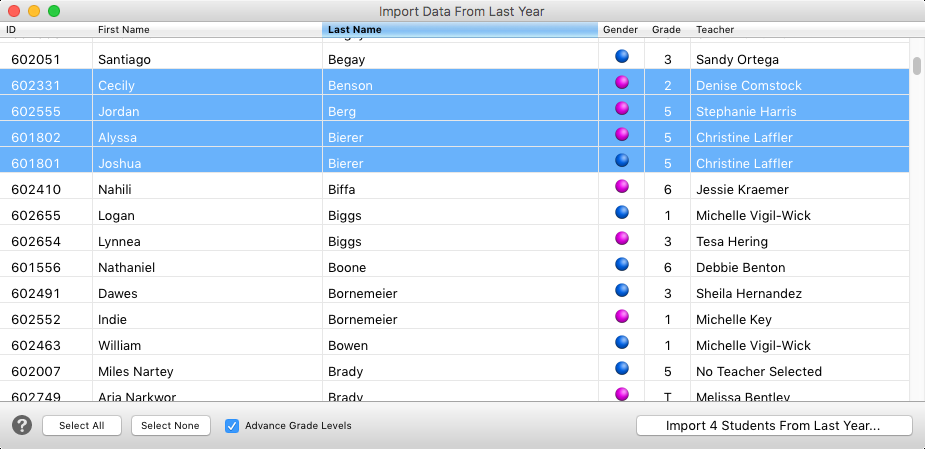
All students that were in the system last year, are listed. If the student is already in the system for the current year, then they will not be listed. Only students that are not in the current year, and were in the system last year are listed.
Select the students you want to carry over into the current school year by clicking their names. You can use the Select All and Select None buttons to aid in your selection.
If the Advance Grade Level checkbox is checked, all students will be advanced one grade level. For example, students that were assigned to grade 1 last year, will be advanced to grade 2 this year.
You can click on a student's teacher and change the class (teacher) that student will be assigned. If multiple students are selected, all students will be assigned to the selected teacher.
When the students are selected and defined as desired, click the Import X Students From Last Year button. After confirming the action, the import will begin.