- support@clearvisiontech.com
- (909) 484-2052


 Preferences
SIMON's Preference panel allows you to set a number of options that will govern how both SIMON and RCM function. To open the Preferences, click the Preferences button on the Main Screen. Choose the desired section at the top of the window:
EDITING DATA
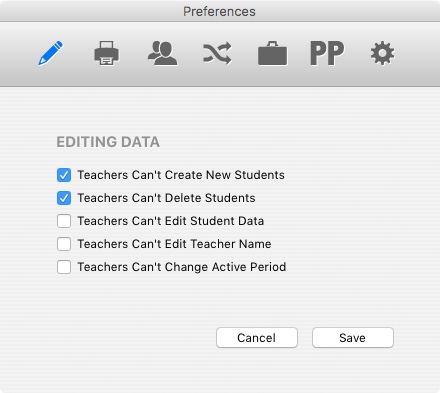
Teachers Can't Create New Students - To ensure valid and complete data at all times, you may opt to remove the ability for a teacher to add students in RCM. Checking this check box will hide the New Student button in RCM.
Teachers Can't Delete Students - To verify that all data is valid and complete data at all times, you may opt to remove the ability for a teacher to delete a student in RCM. Checking this check box will hide the Delete Student button in RCM.
Teachers Can't Edit Student Data - If this option is checked, a teacher will not be able to change a student's ID, name, grade level or language.
Teachers Can't Edit Teacher Name - If this option is checked, a teacher will not be able to edit the Teacher's Name that is displayed on reports and forms.
Teachers Can't Change Active Period - If this option is checked, a teacher can only edit the grades of the term selected in SIMON. To set the Active Period for all teachers, see Set Active Period in the Teachers option in Utilities.
REPORT CARD MAKER PRINTING
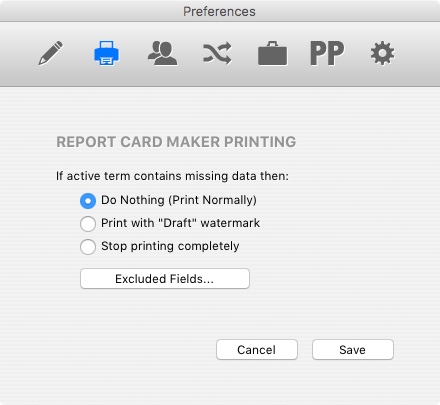
This option determines what happens when a teacher prints his/her report cards when there are empty fields (missing grades) on a student's report card. The options are:
- Do Nothing (Print Normally) - Prints the report card(s) regardless of any empty fields.
- Print with "Draft" watermark - If the student's report card has missing data, then the report card will print with a large "DRAFT" watermark.
- Stop printing completely - If the student's report card has missing grades, the report card will not print at all.
The Excluded Fields option define any fields on your report cards that should not be considered missing. For example, a Special Services check boxes, a comment, or optional classes like Band or Chorus. You can exclude these fields by clicking the Excluded Fields button and selecting the reports and fields that you want to not consider when checking for missing grades.
Note: The Excluded Fields you set here are the same as the Show Missing Grades option in Utilities under Students. These two options share the same list.
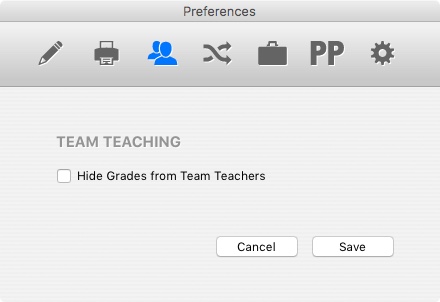
Hide Grades From Team Teachers - If this option is checks, Team Teachers will not see grades entered by the homeroom teacher or by other team teachers. They will only see the grades that they entered.
TEAM TEACHING
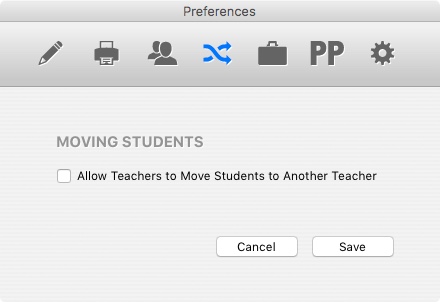
Allow Teacher to Move Student to Another Teacher - If this option if checked, a teacher can move a student from her class list to another teacher's class list without an administrator's approval or involvement.
MOVING STUDENTS
Remove Returns in Connected Comments - If this option is checked, the return that is placed between connected comments will not be used. Auto-Logout After Inactivity - Use this option to determine how many minutes RCM will wait before timing out. RCM will automatically logout when the user has not typed or clicked anything for the number of minutes you select. Don't Show Year in Continuums - When checked, this option will hide the year in continuum "diamond" controls. This option is used primarily to make the display smaller so the diamonds can be closer together without overlapping. Display Continuums in Small Text - This option will set the text size of the continuum "diamonds" to 9pt. This option is used primarily to make the display smaller so the diamonds can be closer together. Allow any Text in Continuums - Typically, only dates are entered in report card continuum controls. Enable this option to enter any text - not just dates. Set Comment Text to Smallest Size Used - If a student has multiple comments on the same report card, this option when enabled, will force RCM to apply the smallest comment size of each of the comments for all the comments. For example, a student has a 1st and 2nd trimester comment. After the shrink-to-fit is applied, the first comment is at 9pt and the 2nd is at 7pt. If this option is checked, both comments will appear at 7 point. Exclude RCM Comment Libraries - Check this option to hide RCM's built-in comment libraries from teachers. Teachers will not have access to RCM's Comment Libraries. Principal Review - Check this checkbox to enable the Principal Review feature. See Principal Review Status in the RCM User Guide for details. Notify Principal by eMail - Available only when Principal Review is selected, this option will send an email to the school's principal when a teacher sets her Principal Review status to "Ready for Principal Review". The principal will receive an email each time a teacher sets this setting. So, the principal would potentially receive one email for each teacher in the school. Auto Launch "Missing Grades" - Available only when Principal Review is selected, when checked, this option will prompt the teacher to use the Missing Grades feature before setting her Principal Review status to "Ready for Principal Review". Principal Can Edit Grades - Check this option if you want the principal to be able to edit student grades and teacher comments on the report cards. Adjust Line Height with Shrink-To-Fit - If a student's comment contains more text than can fit in the comment area on your report card, the text size is automatically decreased until the text fits. This process may leave what appears to be extra room at the bottom of the comment. If this should occur, this option will automatically adjust the line height of the shrunken comment so that the comment fills the comment area. View Previous Years Report Cards - If this option is checked, teachers will be able to look and print report cards for their current students from a previous year(s). Non Binary Color - Select the color RCM should use to display students that are designated non binary. Non Binary Pronouns - Use this button to define which pronouns should be used when applying comments to non binary students. The default option is: they,them,themself,their,them's,kid
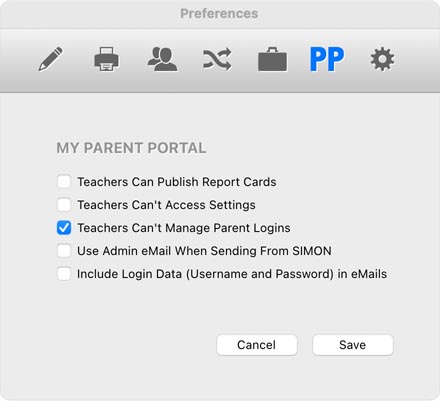
Teachers Can Publish Report Cards - If this option is checked, the homeroom teacher can publish her student's report cards to the My Parent Portal feature. Teachers Can't Access Settings - Check this option if you want to remove the ability for teachers to access the My Parent Portal settings dialog. With this option checked, teachers will not see the "My Parent Portal" option in the "Options" menu in RCM. Teachers Can't Manage Parent Logins - Check this option to manage parent logins only in SIMON. Teachers will not be able to manage parent logins.
User Admin eMail When Sending From SIMON - When SIMON sends an eMail, it is "from" the appropriate teacher. If this option is checked, eMails will be "from" the Administrator who is currently logged in.
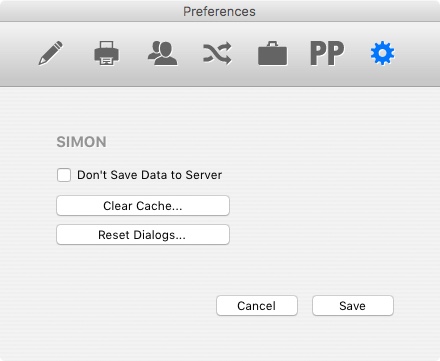
Don't Save Data To Server - Check this option if you want SIMON to never upload data to the server. For example, if you are simply reviewing report cards and DO NOT want any changes you make posted to the server, check this option. Clear Cache - When SIMON or RCM get a resource from the ClearVision web site, it is cached and saved locally. The next time this resource is called upon, RCM will use the local resource rather than downloading the same file again. This dramatically cuts down on bandwidth and network resources. Before opening a local resource, RCM will check the server to verify there isn't a newer version of the resource. To clear all cached resources, check this button. Reset Dialogs - Throughout SIMON and RCM, you will see dialog boxes that have a Don't Show Again option. Clicking this option will reset all dialogs to show again.
OTHER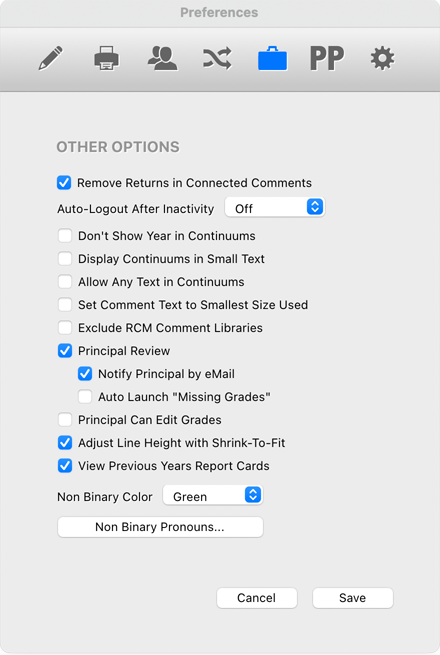
MY PARENT PORTAL
SIMON