- support@clearvisiontech.com
- (909) 484-2052


 Gradebook
The Gradebook Access feature allows you to limit who can access the gradebook. This can be useful if you don't want a specific grade level to use the gradebook, or if you are doing a limited roll out of the gradebook.
SETTING GRADEBOOK ACCESS
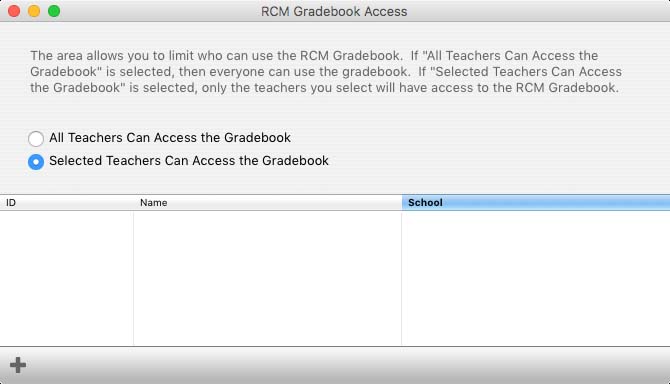
To limit access to individual teachers, click the Selected Teachers Can Access the Gradebook radio button. Then, click the  Add User button and select the teacher. You can add as many users as you need.
This option lets you globally set some settings and preferences in the RCM Gradebook for each teacher. In some cases, you have the option to lock out the ability for teachers to adjust the settings you set.
ENABELING GLOBAL SETTINGS
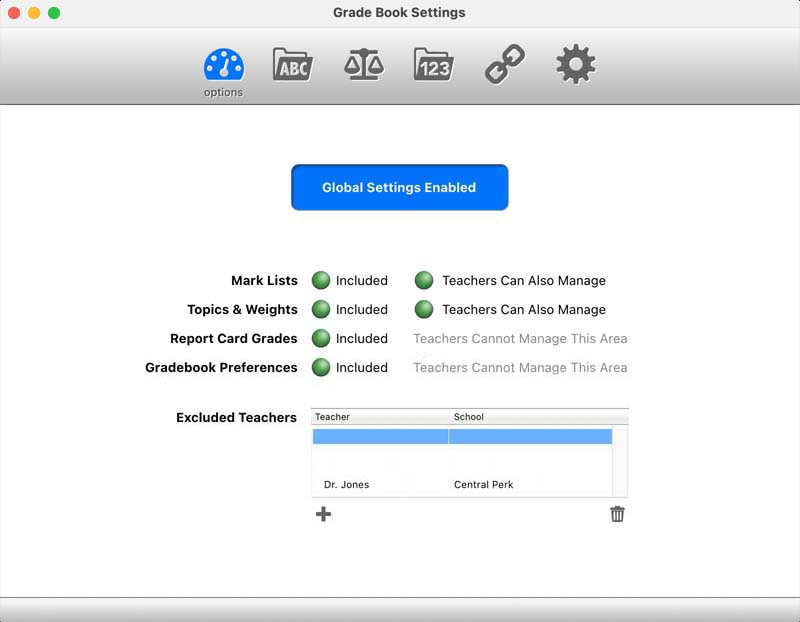
To activate these settings, click the Global Settings button so that it says "Enabled". When not enabled, teacher will have complete control to setup the gradebook on their own.
 OPTIONS
You have the ability to control each set of options/preference independently. For example, you can set the Report Card Links for the teachers, and at the same time, opt to let the teachers control the Preferences.
The areas you can control/manage are:
For Mark Lists, Topic & Weights, and Report Card Links, you can click the "Teachers Can Also Manage" button. When any of these options are green, the teacher will be able to add their own items.
If you enable the Report Card Grades and/or Gradebook Preferences, teacher will not be able to override your settings.
 MARK LISTS
Mark Lists are the list of grades that teachers can use in their gradebook. Typically, these are letter grades like ABC, OSU, or 123. Percentages and points are not Mark Lists. Editing the Mark Lists is done exactly the same as it is in the RCM Gradebook. Click here for details.
 WEIGHTS & TOPICS
Topics are the types of entries in your Gradebook. For example, a Test, Quiz, Homework assignment are all Topics. Topics are also used in the Weights. For example, if you want Tests and Quizzes to account for 60% of the final grade, and homework to account for 40% of the grade, you'll need Test, Quiz, and Homework Topics. Editing Topics & Weights is done exactly the same as it is in the RCM Gradebook. Click here for details.
 REPORT CARD GRADES
When a grade is converted from the Gradebook's percentage to the grade used on the report card, Report Card Grades define what the grade percentages conversion will be. Editing Report Card Grades is done exactly the same as it is in the RCM Gradebook. Click here for details.
 REPORT CARD LINKS
When a grade from the Gradebook is applied to the report card, it's the Report Card Link that defines where that grade is going to go. Editing Report Card Links is done exactly the same as it is in the RCM Gradebook. Click here for details.
 GRADEBOOK PREFERENCES
See the RCM Gradebook Preferences for a description of each item.
The Set New Entry Default Term feature allows you to preset the term for newly created entries in the Gradebook.
SETTING THE NEW ENTRY DEFAULT TERM
Simply enter the desired term. "1" or "3", for example. It's that simple. If teachers are currently logged in to RCM, they will need to logout and re-login to see the update.